Add a variance to an employee shift
Use the Manage tab to add a variance (or change) to an employee shift, such as a holiday or sick day.
Note:
- Only published calendar shifts are displayed in the Manage tab.
- If you are republishing a calendar, variance data may be lost. Only annual leave for full days or multi days and absences are transferred to republished calendars.
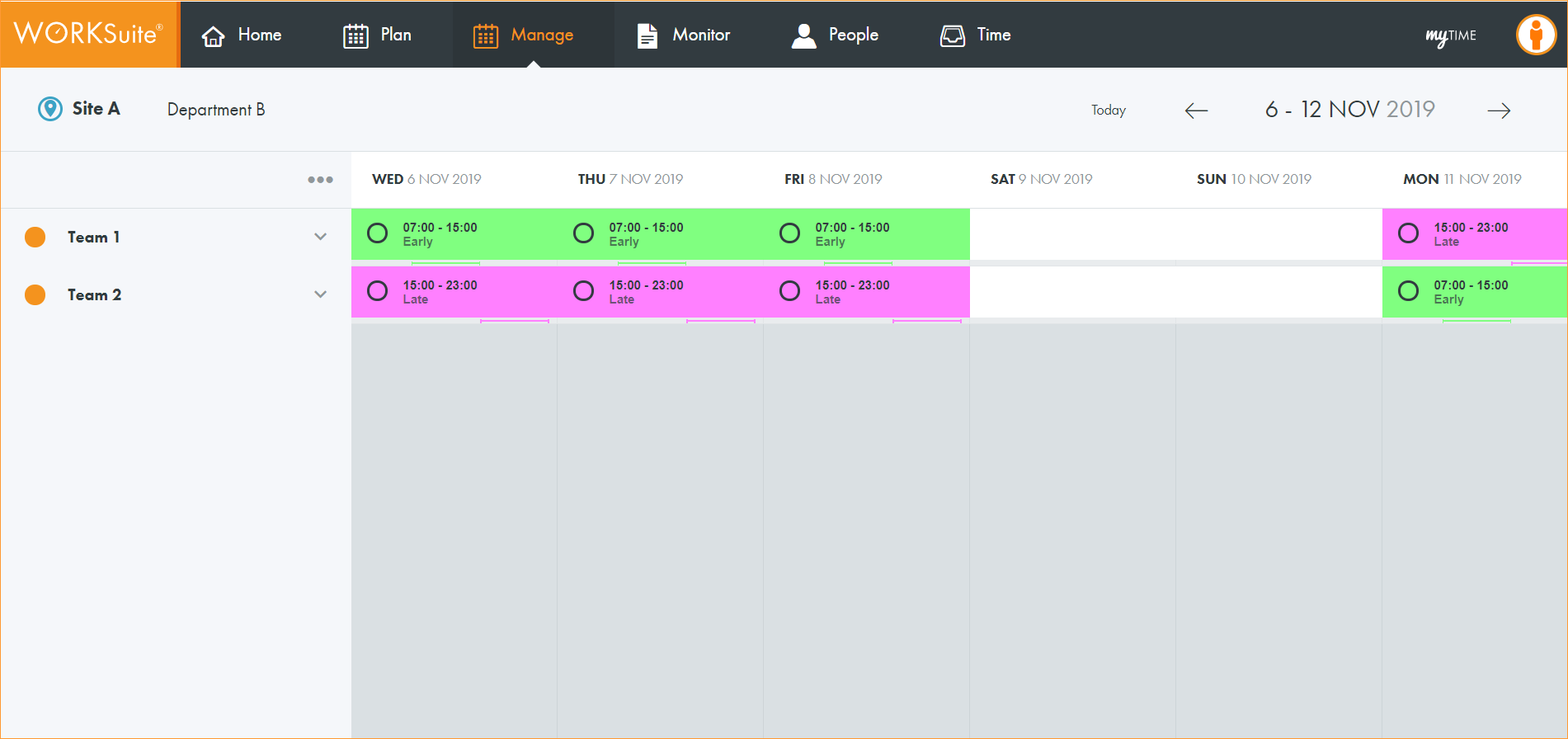
- Open the Manage tab:
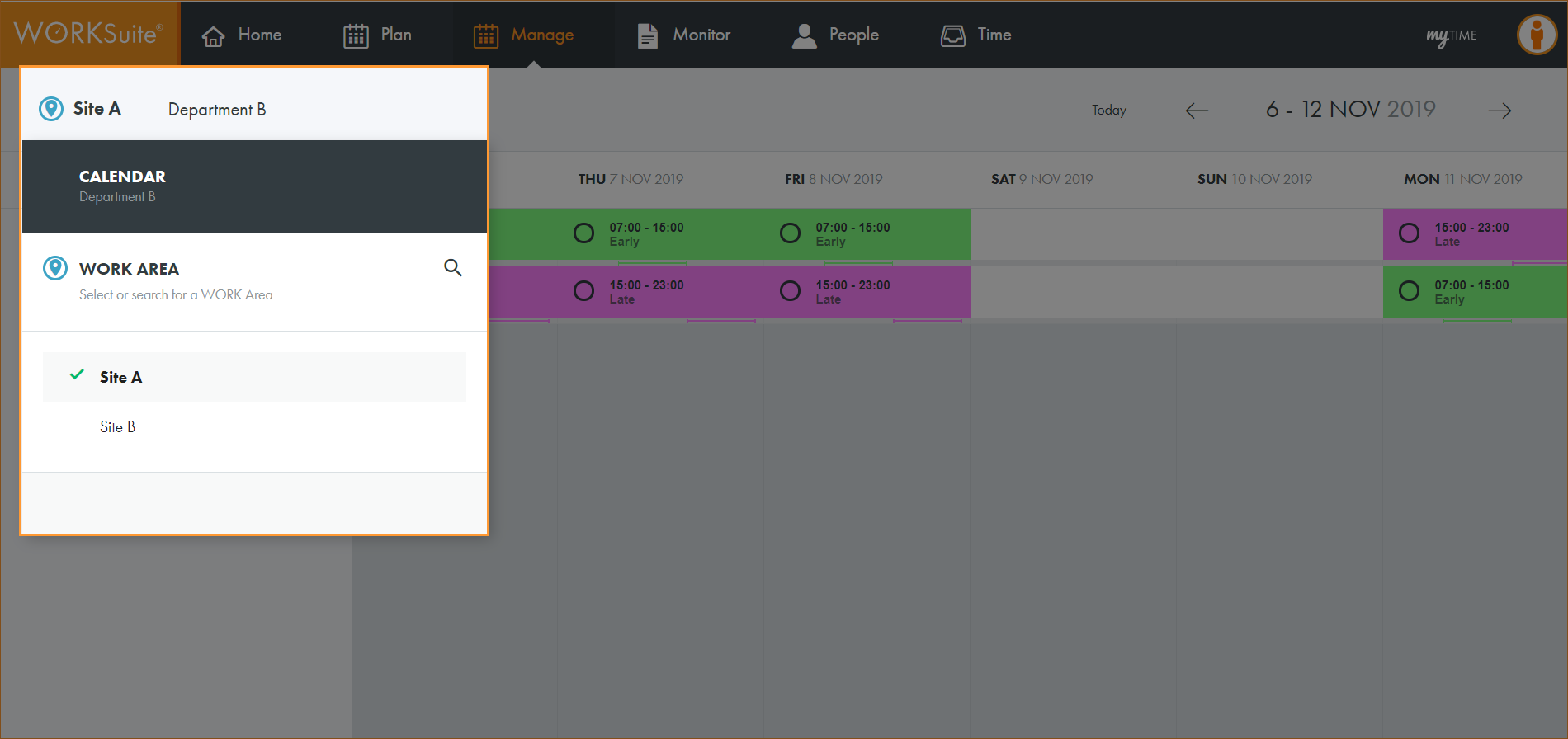
- Click
 and select the work area that you want to work with:
 - By default, your previously selected work area is preselected.
- If you only have access to a single calendar, this is pre-selected when the screen loads. There is no need to select a calendar.
- Select the calendar that you want to work with:
- Select the dates that you want to view:
- Click the arrow next to your selected team to expand the team list.
- Click on the shift that you want to work with. A popup window is displayed:
- Click Make a change to display the variance categories. These are preconfigured from six variance types. In this example seven variance categories are used ('Absence' and 'Sickness' are dealt with in the same way):
- Select a variance category.
- More detailed variances reasons are listed under variance categories. For example, ‘Authorised’ and 'Unauthorised' absence are listed under ‘Absence’. This is useful for adding detail to a record.
- Each variance category can have a single reason or multiple reasons listed.
- Select a variance reason, if the window is displayed:
- Complete the variance information screen, this differs depending on the type of variance you are working with:
- Mark the absence as a Full day, Part day or Multi day and adjust the times and dates accordingly:
- Enter any relevant comments. These can be displayed when reporting on variances.
- Click Save.
- Choose to override the warning if changes are being made retrospectively. This allows you to accurately reflect the actual working time for employees.
- Refresh the page.
- Mark the leave as a Full day, Part day or Multi day and adjust the times and dates accordingly:
- Enter any relevant comments. These can be displayed when reporting on variances.
- Click Save.
- Choose to override the warning if changes are being made retrospectively. This allows you to accurately reflect the actual working time for employees.
- Refresh the page.
- In the Until Shift Date field, click
 and select the end date for the shift change:
 - Select the shift that you want to change to. The original shift is displayed in the top left of the window.
- Scroll down the window and enter any relevant comments. These can be displayed when reporting on variances.
- Click Save at the bottom of the window.
- Choose to override the warning if changes are being made retrospectively. This allows you to accurately reflect the actual working time for employees, regardless of WTR breaches.
- Refresh the page.
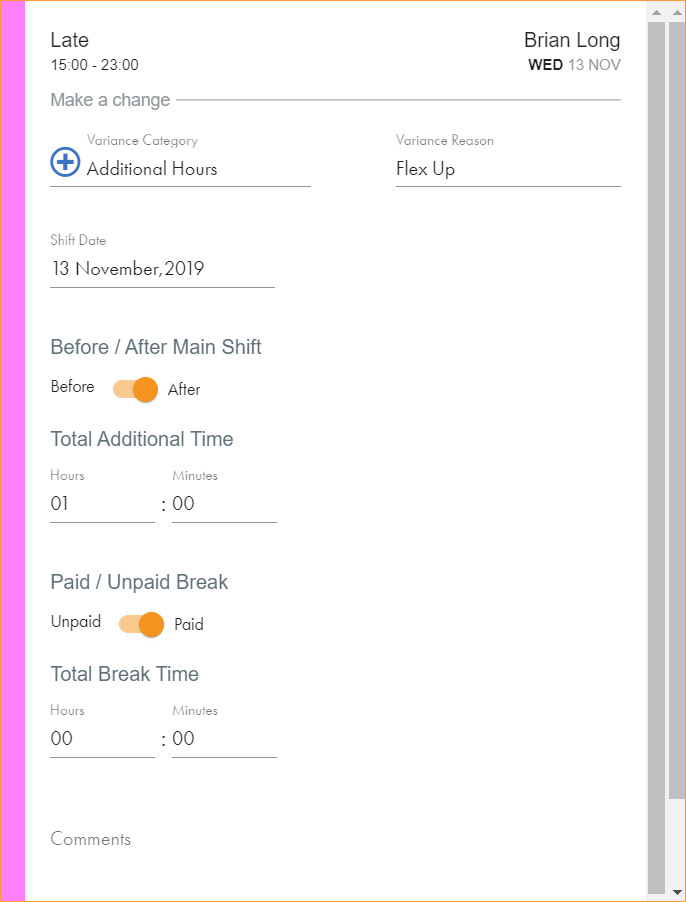
- Select whether the additional hours are to be worked Before or After the Main Shift (this is not displayed if you are adding additional hours to a rest day) and enter the number of additional hours/minutes to be worked:
- Mark whether the additional time qualifies to have a Paid or Unpaid Break and enter the total hours/minutes for the break.
- Scroll down the window and enter any relevant comments. These can be displayed when reporting on variances.
- Click Save.
- Choose to override the warning if changes are being made retrospectively. This allows you to accurately reflect the actual working time for employees, regardless of WTR breaches.
- Refresh the page.
- Mark the event as a Full day, Part day or Multi day and adjust the times and dates accordingly:
- Enter any relevant comments. These can be displayed when reporting on variances.
- Click Save.
- Choose to override the warning if changes are being made retrospectively. This allows you to accurately reflect the actual working time for employees.
- Refresh the page.
- In the To Shift Date field, click and select an end date for the shift swap. By choosing a date in the future you are selecting multiple shifts to swap that fall on consecutive days, between the Shift Date and the To Shift Date:
- Click Pick one and start typing the name of the employee who you want to swap the shift with.
- Select an employee from the list displayed. Employees are listed with the shift that they are currently scheduled to work. This is helpful as it prevents you swapping employees working on the same shift.
- Enter any relevant comments. These can be displayed when reporting on variances.
- Click Save.
- Choose to override the warning if changes are being made retrospectively. This allows you to accurately reflect the actual working time for employees, regardless of WTR breaches.
- Refresh the page.
- The variance is displayed on the shift and the employee’s account is updated.
Note:
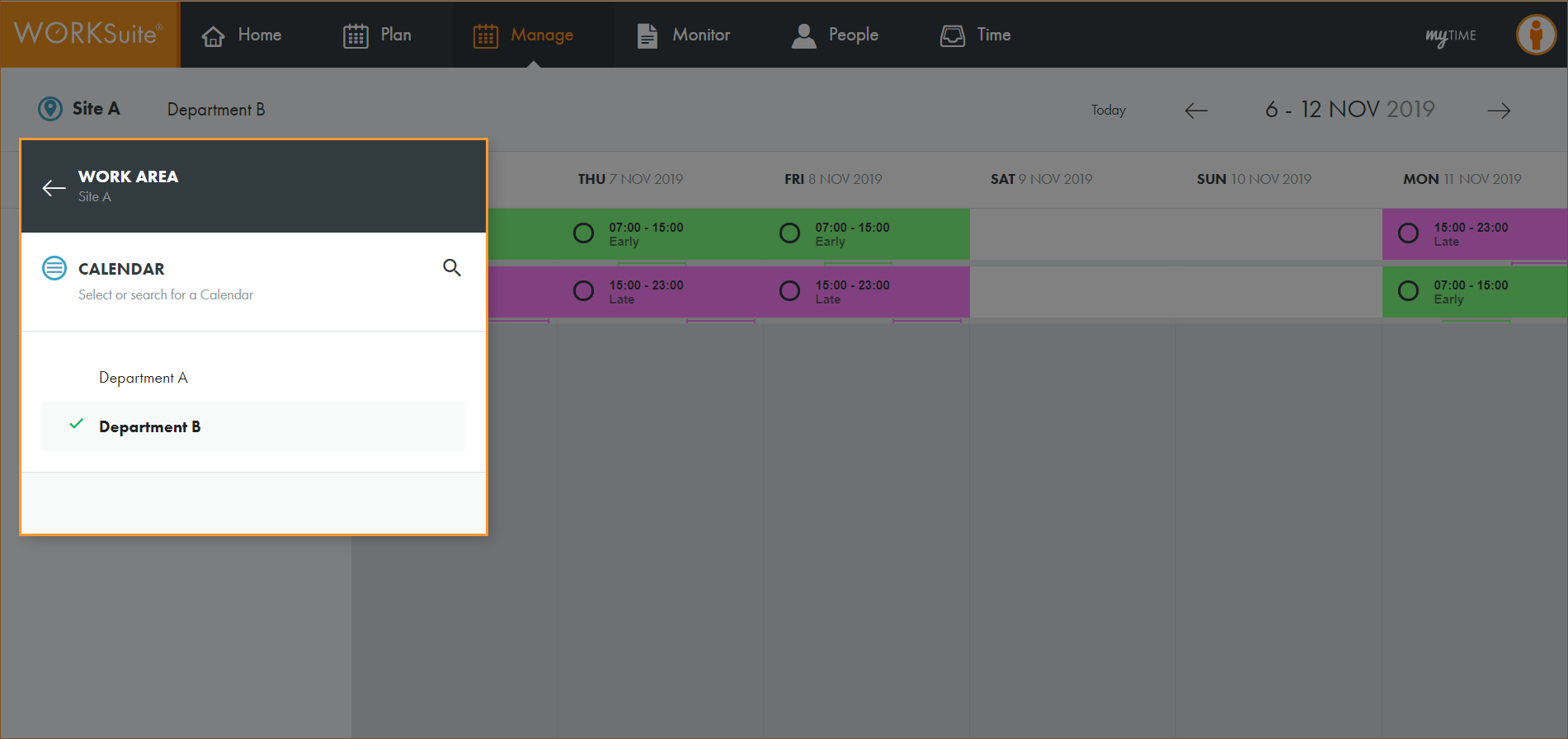
Note: By default, your previously selected calendar is preselected.
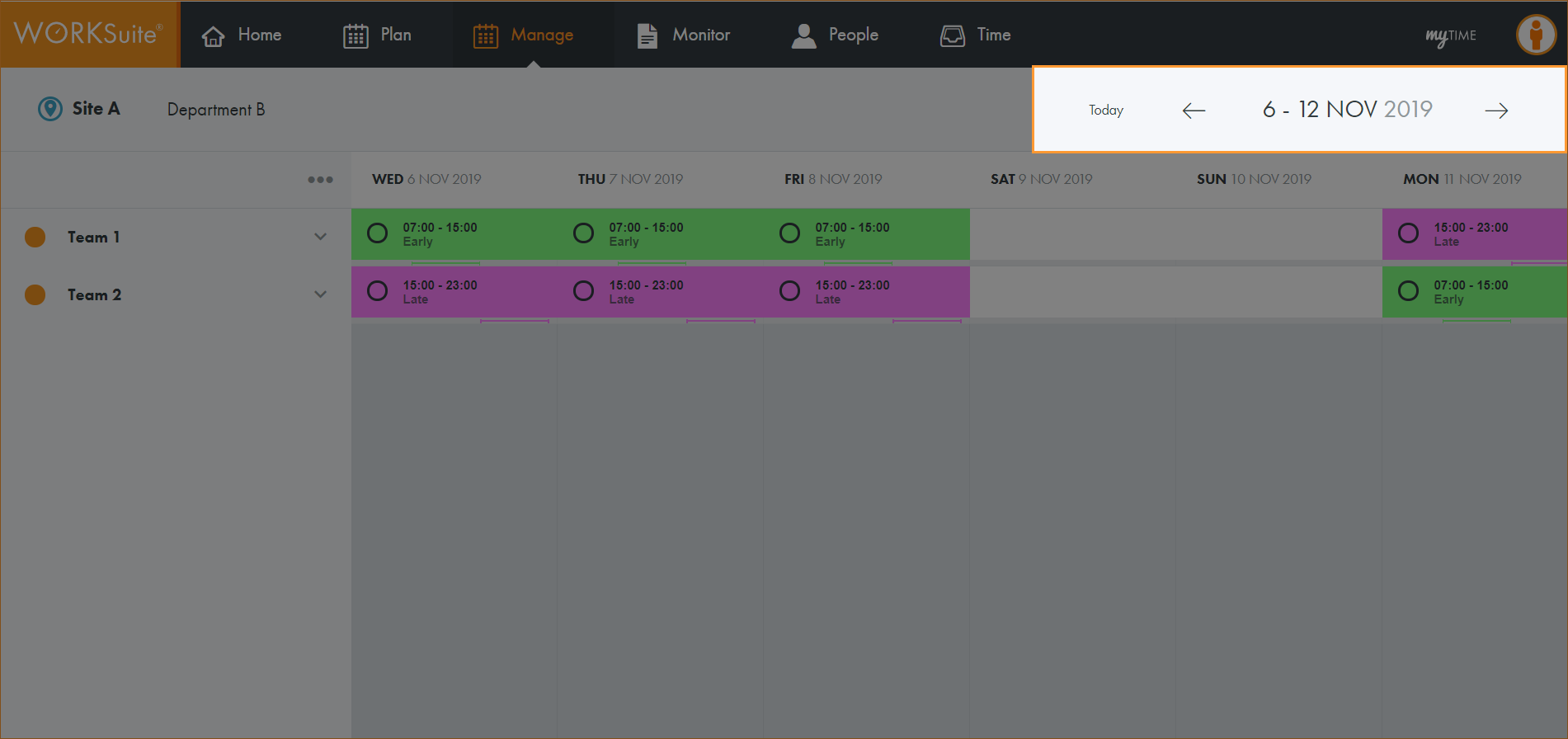
Note: You cannot navigate to a new week until the information for the week which is currently shown is fully loaded. The navigation buttons are temporarily disabled to prevent multiple weeks being loaded at the same time.
All teams published in the selected calendar are listed.
All employees in the selected team are displayed:
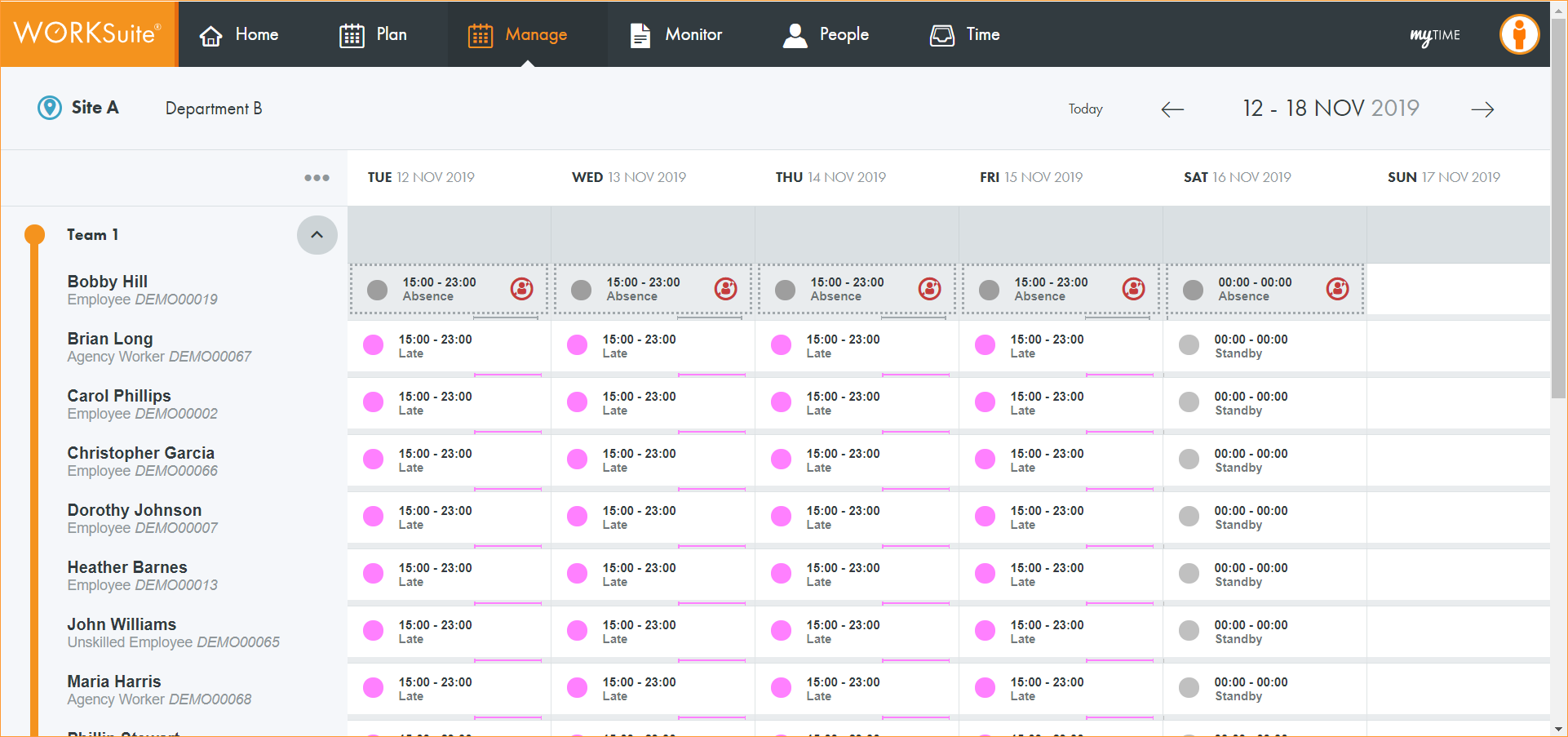
Icons indicate any variances currently logged for employee shifts.
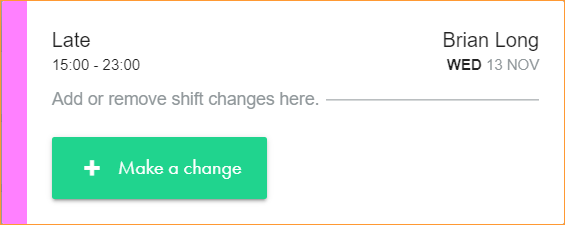
The shift details are displayed in the top left of the window. In this example, Bobby Hill is scheduled to work the Late shift from 15:00 - 23:00 on Tuesday 12 November.
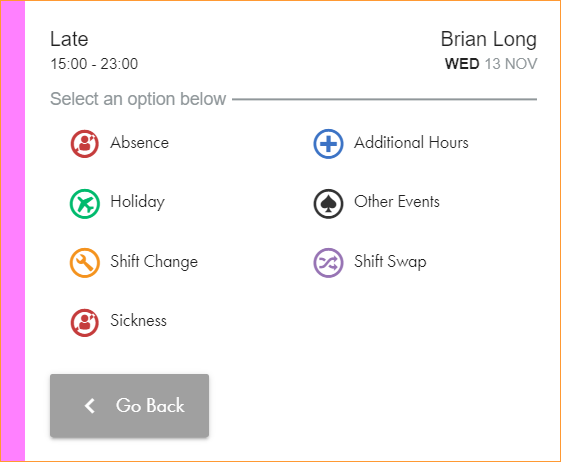
Note:
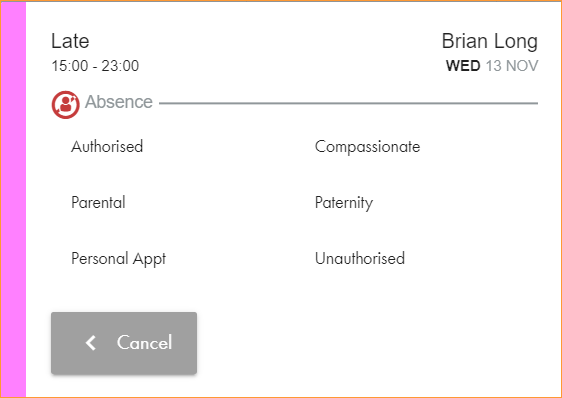
Note: Where there is only a single variance reason for a category this window is not displayed. You are taken straight to the variance information screen.
 Absence.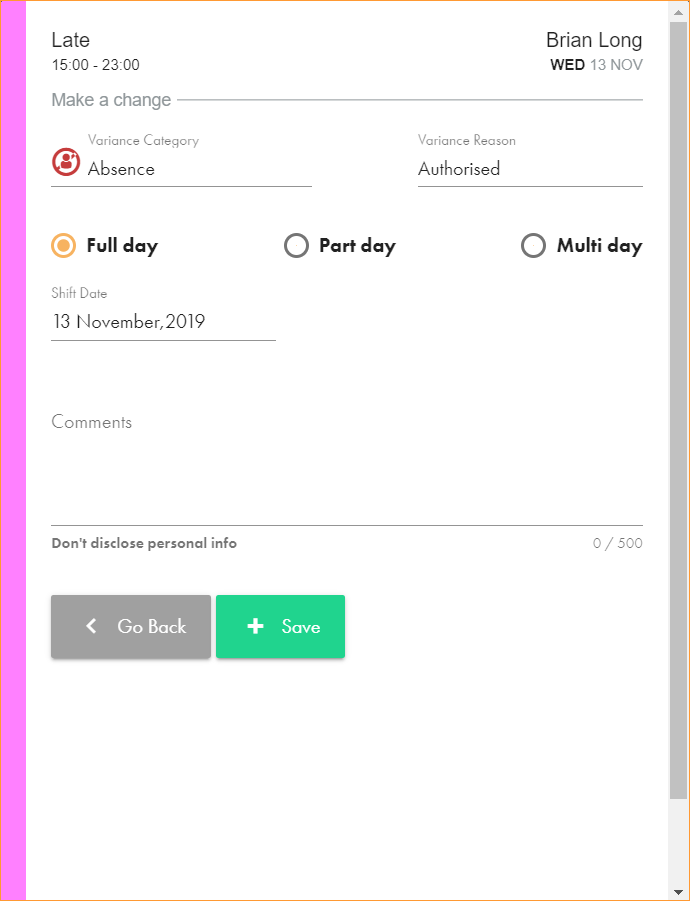
A clash warning is displayed if the variance clashes with any existing variances listed for the employee for selected day/s.
If an employee has a full day of absence, their shift is highlighted grey to reinforce their non-availability status.
 Holiday.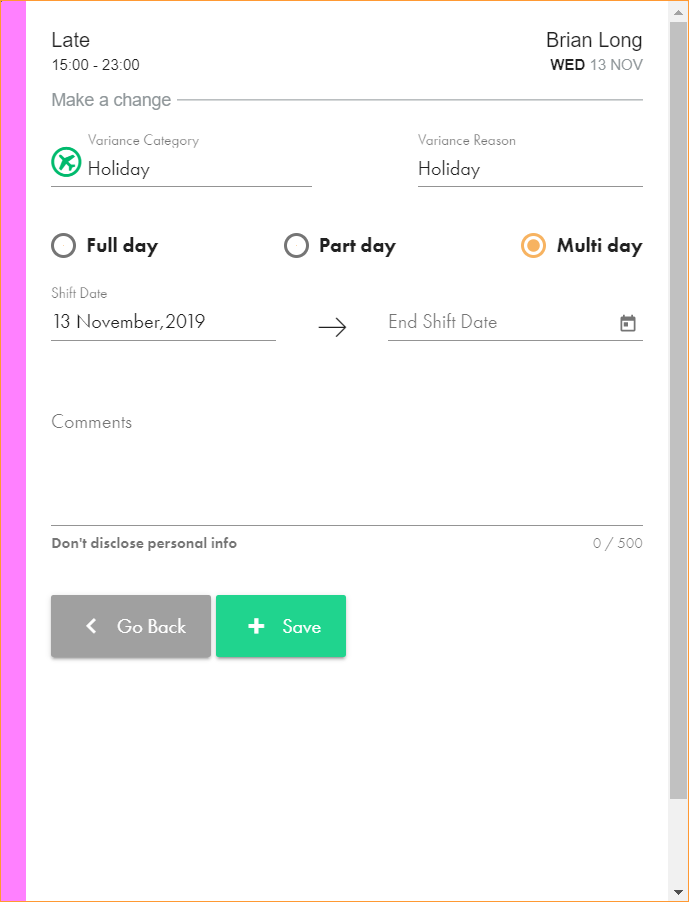
A clash warning is displayed if the variance clashes with any existing variances listed for the employee for selected day/s.
If an employee has a full day of holiday, their shift is highlighted grey to reinforce their non-availability status.
 Shift Change.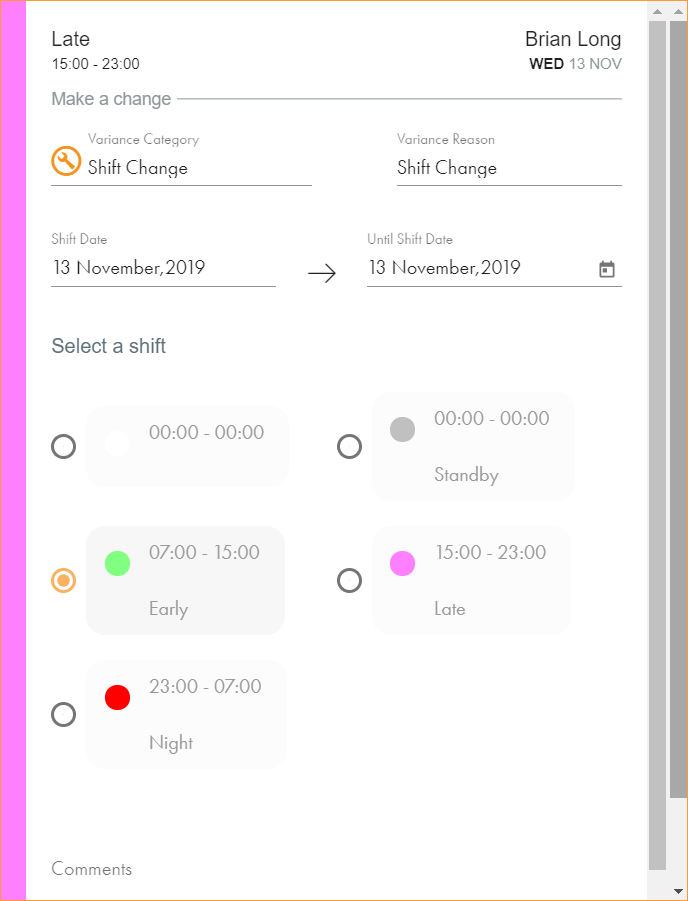
A Working Time Regulations warning is displayed if the variance is in breach of the Minimum Rest Between Attendance rule (11 hours) for the selected day/s:
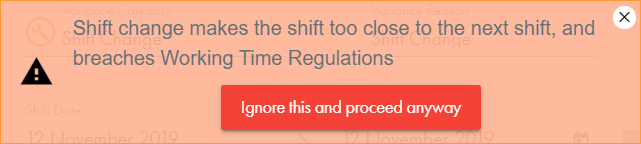
The alert is displayed if the start of the shift on the next day is less than 11 hours from the end of the new shift. The start time is adjusted for any holiday or absence which is set to begin at the start of the shift on the next day. The start time used will be the end of the holiday or absence, when the employee is expected to work.
 Additional Hours.
Additional hours can be added for an employee on a current working day or a rest day. Using this process is useful when employees work non standard shifts on their rest days; reporting on worked hours is simplified.
A Working Time Regulations warning is displayed if the variance is in breach of the Minimum Rest Between Attendance rule (11 hours) for the selected day/s:
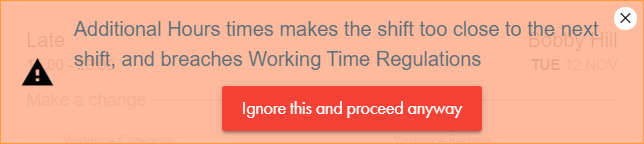
The alert is displayed if the start of the shift on the next day is less than 11 hours from the end of the additional hours. The start time is adjusted for any holiday or absence which is set to begin at the start of the shift on the next day. The start time used will be the end of the holiday or absence, when the employee is expected to work.
 Other Events.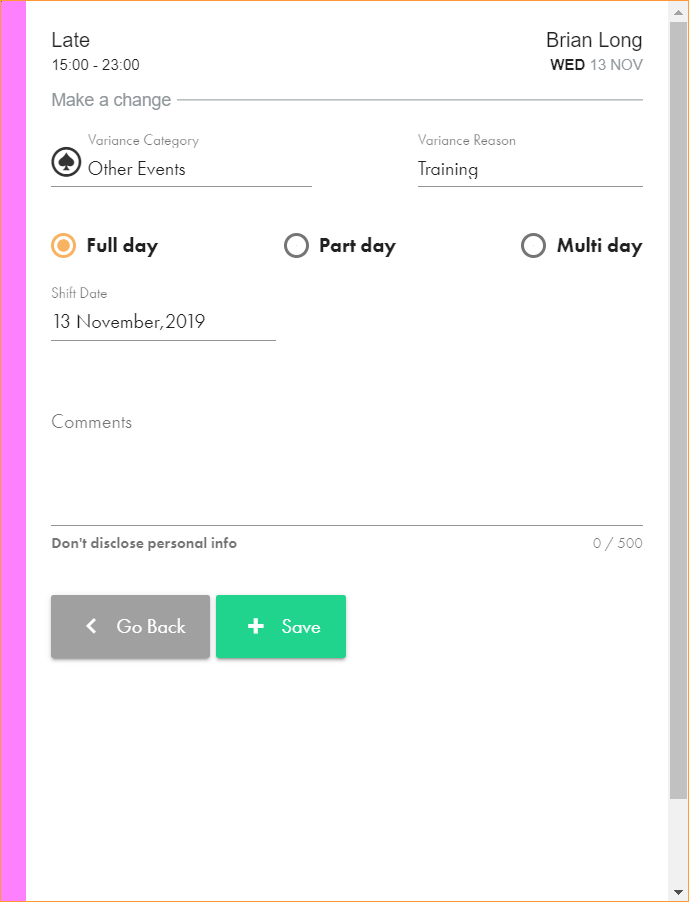
A clash warning is displayed if the variance clashes with any existing variances listed for the employee for selected day/s.
If an employee has a full day event, their shift is highlighted grey to reinforce their non-availability status.
 Shift Swap.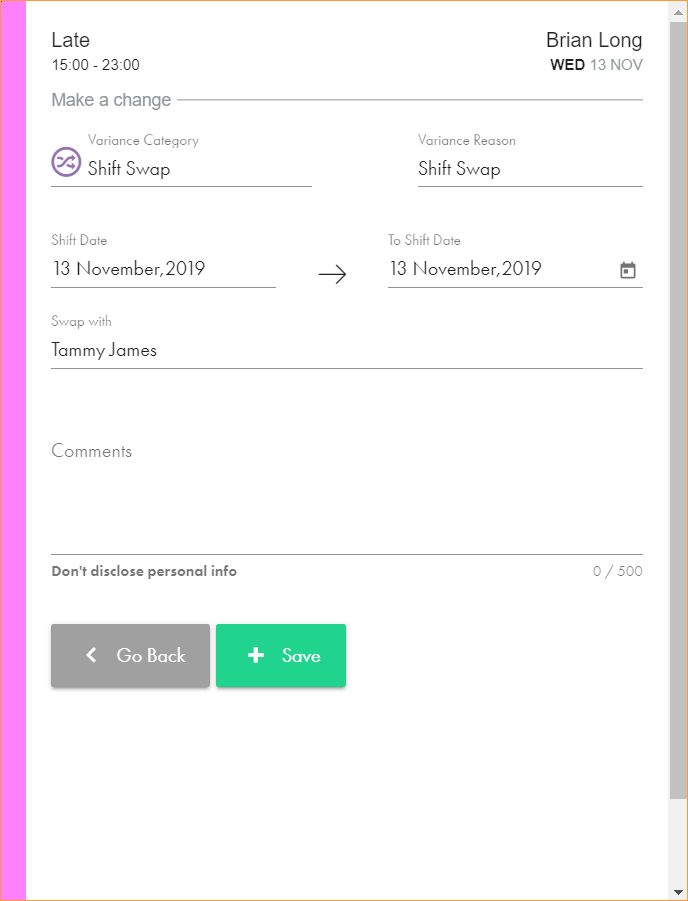
A Working Time Regulations warning is displayed if the variance is in breach of the Minimum Rest Between Attendance rule (11 hours) for the selected day/s:
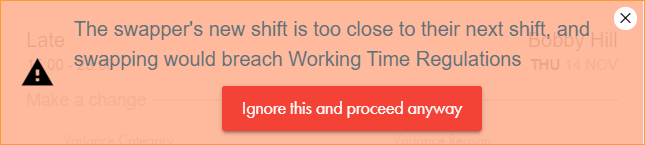
The alert is displayed if the start of the shift on the next day is less than 11 hours from the end of the new shift. The start time is adjusted for any holiday or absence which is set to begin at the start of the shift on the next day. The start time used will be the end of the holiday or absence, when the employee is expected to work.